
Enabling productive workflows with saved views
Carom now has saved views: combinations of filters for your emails, contacts, and other records that let you quickly find just what you care about. And for your email, you can get notified only about the new messages that meet the criteria you really care about.
We built this feature because most of the time, you don’t care about most of your emails. The same is true of your contacts, organizations, deals, and files: you need a repository because sometimes you need all of them, but most of the time you have a specific task to accomplish or an update you need to know about.
From ephemeral filters to persistent workflows
A saved view is a set of filters with a name, an icon, and notification settings. It shows up in your sidebar under Saved views, and clicking it opens your email (or contact, organization, or file) list with those filters applied. Nothing about the underlying data changes: a view is just a faster way to look at the list you already have.
In our demo account, you can see that Jamie, our head of customer success, has a view for Arcwell Health, which shows email just from people at that VIP customer:
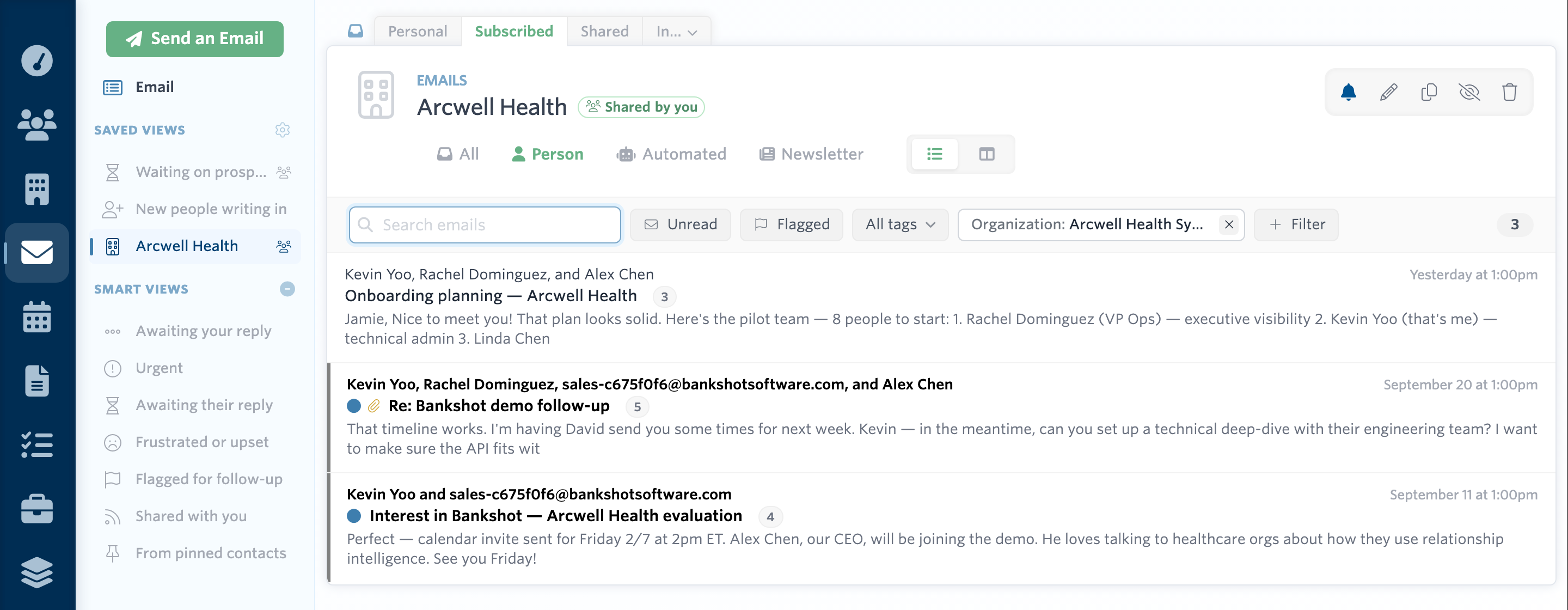
The “key account” view is a useful one. Some others we find valuable:
- Prospects who owe us a reply. Emails where we’re waiting on a reply, limited to people on an open deal. That helps make sure nothing important falls through the cracks.
- New people writing in. Mail from a person (not a newsletter or a notification) who has never emailed you before.
- Unhappy customers. People whose emails have a frustrated or upset tone.
- Urgent emails. The ones we want to make sure we address right away.
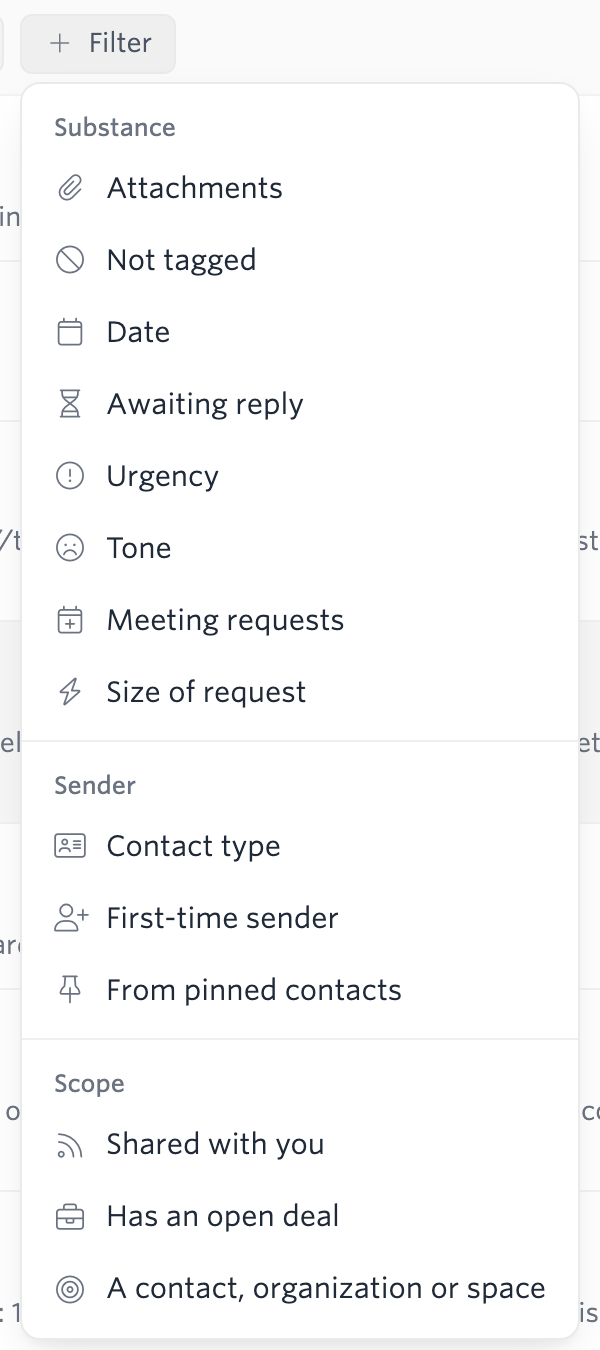
In fact, you can create a saved view for just about any filter (or combination of filters) that you can use in Carom. For email, thanks to our classifiers, that’s quite a few:
Private or shared saved views
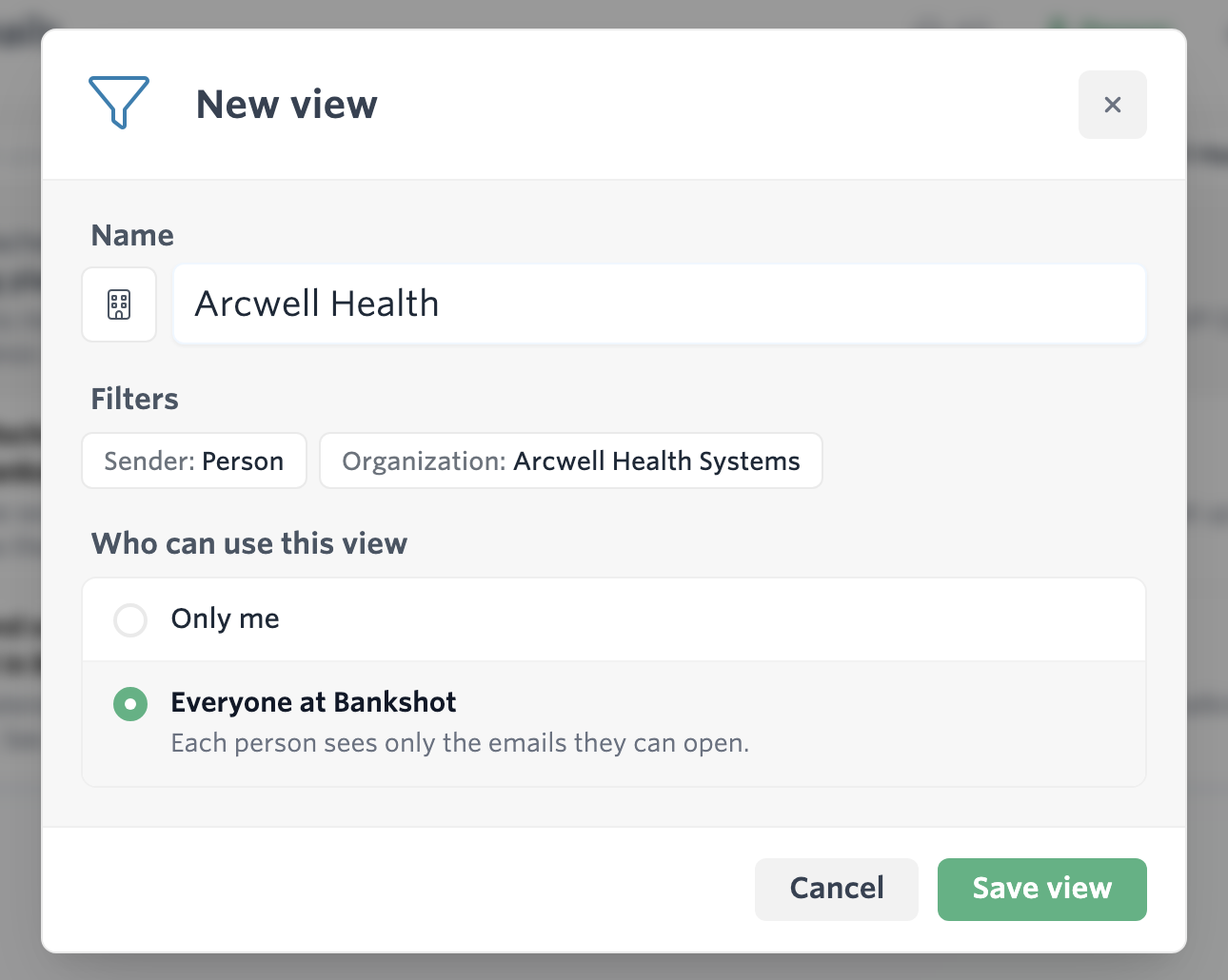
To create a saved view, just filter the list the way you want it, then click Save as view. Give it a name, pick an icon if you like, and choose who can use it:
You can change the filters on a saved view later (adjust them on the list, then save), rename it, copy it, hide it from your sidebar, or delete it. The built-in smart views—Awaiting your reply, Urgent, and the rest—work the same way, and you can copy one as a starting point for your own.
You can make a view visible only to you, or share it with everyone at your company. Sharing a view shares the filters, not the email. When a teammate opens a shared view, Carom runs it against the email they can see, so two people looking at the same view may see different threads. Nothing about a saved view widens anyone’s access.
That’s what makes shared views useful for a team. An account lead can set up “Arcwell Health” once, and everyone who works on that account gets the same view in their sidebar, each seeing their own share of the conversation. Each person keeps their own order, can hide views they don’t need, and chooses their own notifications.
Notifications help you take prompt action
On a saved email view, the bell lets you choose what happens when new mail matches:
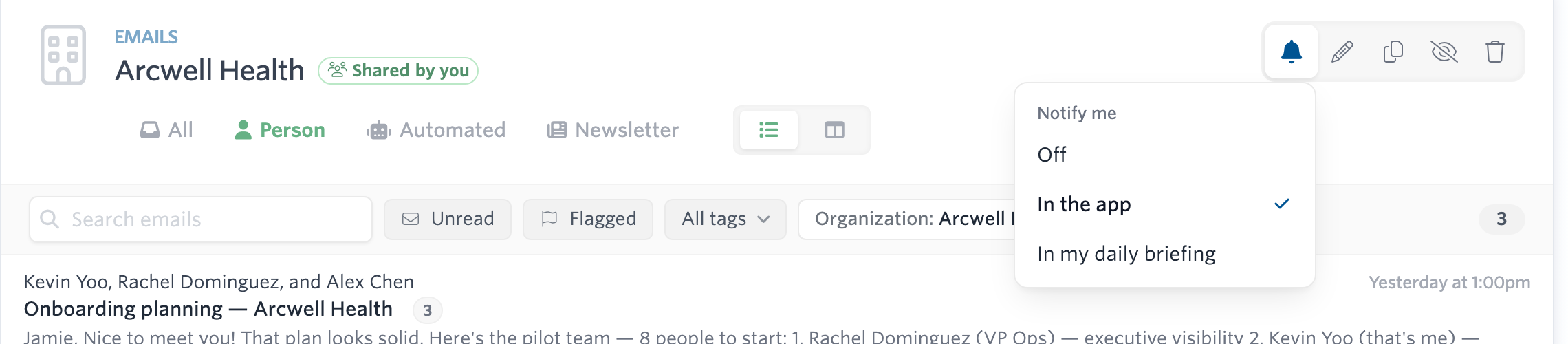
- Off, the default.
- In the app: a notification when a new email from outside your company matches.
- In the app and push, if you have the Carom app on your phone with notifications turned on.
- In my daily briefing, for emails you don’t need to handle immediately but want to include in your plan for tomorrow.
Views on every list
Saved views also work on contacts, organizations, deals, tasks, and files, on the web and in our iPhone app, where your pinned views show up as tabs above each list. We think they’re just as useful for other kinds of records: think of “contacts we haven’t talked to in 90 days” or “open deals in one pipeline,” so you don’t lose sight of the right next action.
You can try saved views in our demo, and if there’s a view you wish you could build but can’t, let us know.